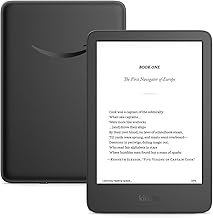
Our device guide starts with “use what you already own,” and that advice stands. This page is for the next step, when the Kindle is going to be your kid’s own and you get to decide what kind of library lives on it.
Why not Kindle Kids?
Parts of the Kids bundle are genuinely nice, the case and the two-year no-questions warranty in particular. But the heart of the kids setup is Amazon Kids+, a subscription library of thousands of children’s books, and Amazon pushes it constantly. It’s free candy. Very enticing, and it encourages overconsumption. In our house it meant more Dog Man and less of everything else.
I wanted the opposite. A Kindle where I know exactly what books my kids have access to, because I put every one of them there. It’s a touch more work to set up. It has been worth it.
The setup
- Create a family email account. Any provider, ten minutes. Its only job is the next step.
- Create a new Amazon account with that email. This is the move that makes the whole thing work. The account starts empty, no purchase history, no library of yours sitting behind it. A Kindle registered to it can only ever contain what you deliberately add.
- Register the Kindle to that account and turn on parental controls. In the Kindle’s settings, set the parental controls PIN, then switch off the store, the web browser, and anything else it offers to switch off. Now nothing arrives on the device unless it comes from you.
- Send books with Send to Kindle. Sign in at amazon.com/sendtokindle with the family account (it has to be that account) and drag the EPUB in. Every book on this site loads this way, free.
If a book doesn’t show up on the Kindle after a couple of minutes, go to the account’s content list, select the book, and choose Send to device.
It should be obvious, but let’s be explicit anyway: your kids don’t get the passwords to any of these accounts. The passwords are the whole system.
What you end up with
A Kindle that only holds the classics and the other books you explicitly granted. No storefront, no recommendations, no subscription shelf. When a book gets finished, the next one has to come through you, and that’s the point. Picking the next book together beats letting an algorithm refill the bowl.
One cosmetic note: on older Kindles, books sent this way can show a generic gray cover in the library instead of the real one. The book is fine, that’s just the device showing its age.